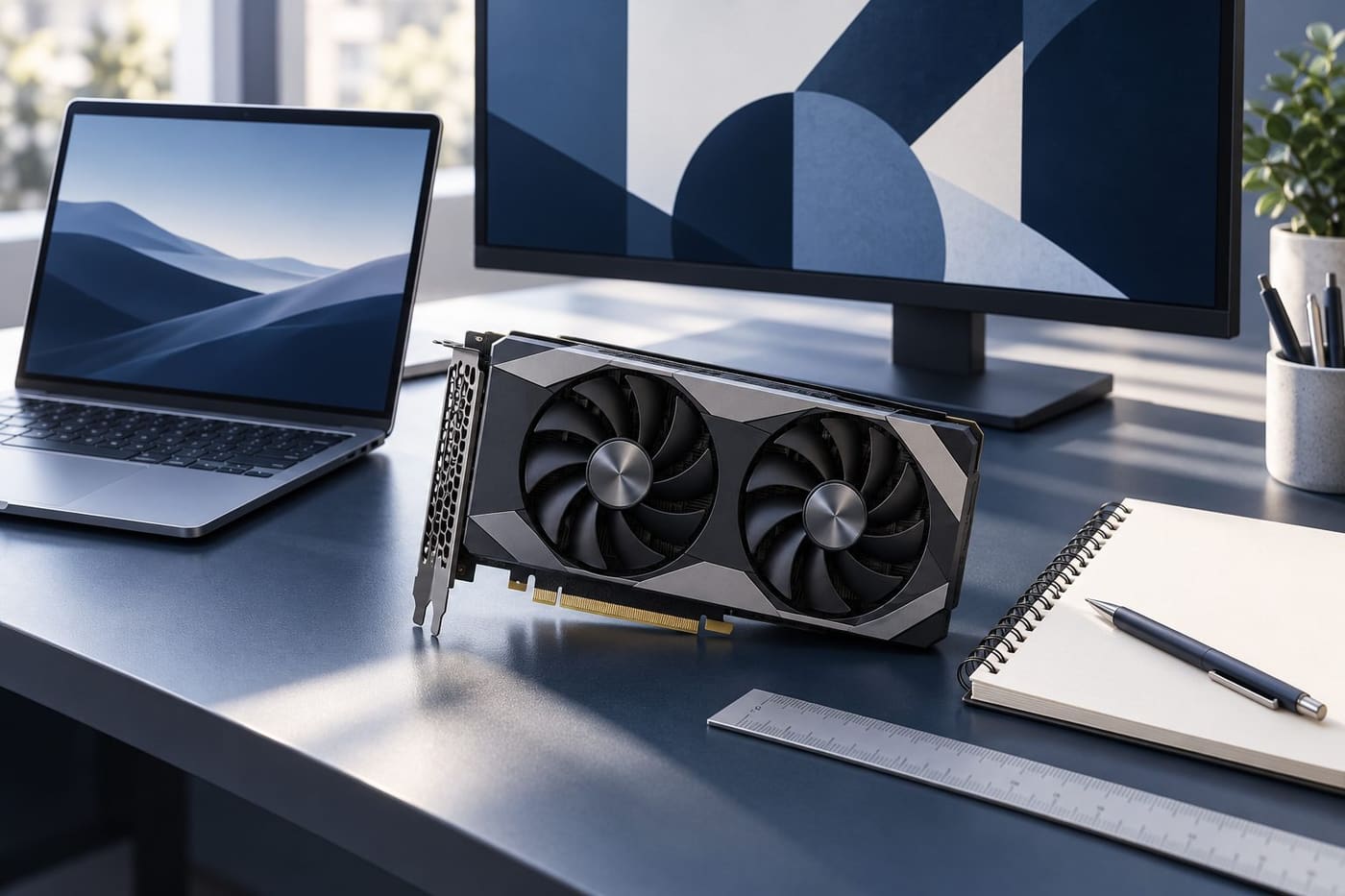
An NVIDIA RTX headline can make a graphics upgrade feel urgent. A rumour about future supply, a large performance multiplier or a photograph of an impressive desktop card is enough to send a buyer towards a checkout. None of those things tells you whether the product suits your monitor, your software or the computer you already own.
A better starting point is a short description of the problem you want to solve. Perhaps a game becomes uneven at your chosen settings. Perhaps a video project takes too long to export. Perhaps you need a portable machine for study and occasional creative work. Those are different purchasing problems, even when every shortlisted product carries an RTX name.
This guide explains how to compare specifications and demonstrations without treating a marketing number as a personal performance guarantee. It is relevant to Singapore readers following RTX news, but does not certify local prices, stock or any reported future discontinuation. Check those details with the seller and manufacturer before committing money.
Define the job before selecting the model
Write down the three applications or games that matter most to you, the display you will use and the result you want to improve. Be specific. A request for a quieter editing computer is different from a request for the highest possible competitive-game frame rate. Both are more useful than simply asking for a powerful GPU.
For a gaming system, record resolution and the settings you actually intend to use. For creative work, record the software version and a representative project: the footage, effects or scene complexity that currently causes difficulty. For a laptop, include how often you will carry it and whether your demanding work normally happens near a power socket.
That small brief prevents an expensive detour. If the shortlist does not address the original problem, a larger number on the box is not an adequate reason to change it. Keep your current system as a reference point rather than assuming every difficulty requires replacing the graphics card.
Read the complete product name
Desktop and laptop GPU names must be compared separately. NVIDIA publishes different specification tables for its desktop GeForce RTX 50 series and its laptop range. The word Laptop is meaningful: matching model numbers do not establish identical hardware, memory or performance. [Desktop specifications](https://www.nvidia.com/en-us/geforce/graphics-cards/50-series/) and [laptop specifications](https://www.nvidia.com/en-eu/geforce/laptops/50-series/).
For example, the published tables list 32 GB of memory for the desktop RTX 5090 and 24 GB for the RTX 5090 Laptop GPU. These figures illustrate why the full name matters; they are not a recommendation that either product is necessary for your work. The laptop table also specifies ranges of GPU subsystem power, making the complete laptop configuration important.
Copy the full retailer model identifier into your comparison notes. Include the laptop manufacturer and configuration, or the desktop card manufacturer's exact version. A familiar GPU family name can appear in products with different cooling arrangements, physical dimensions and other characteristics that affect the buying decision.
When comparing two listings, ask the seller to resolve ambiguous information in writing. An attractive photograph is not a substitute for the correct specification sheet. Save the listing and invoice details for the particular configuration you purchased, rather than relying on a general family page later.
Separate memory capacity from a speed ranking
GPU memory capacity is one part of a specification, not a complete performance score. Two products with the same stated capacity should not automatically be treated as equivalent. Likewise, a larger capacity alone does not tell you how quickly a particular game or application will finish its work.
Use your software's requirements and representative tests to determine whether memory is a constraint in your own workload. Avoid guessing from a single percentage in a monitoring window. The useful question is whether the project behaves poorly because of a memory limit, another component or the way the application is configured.
A practical comparison note might say: this editing project uses these source files, these effects and this export preset; the current system fails or slows at this stage. That description gives a reviewer or technician something reproducible to investigate. A statement that you need more gigabytes because a newer card has them does not.
Also distinguish the graphics card's memory from system memory when reading a prebuilt computer listing. If the advertisement is unclear about which number belongs to which component, pause the comparison until you have the complete specification. Do not add unrelated memory figures together to invent a combined GPU capacity.
Understand what a DLSS number is describing
DLSS is a collection of technologies rather than a single setting that behaves identically in every demonstration. NVIDIA's developer documentation distinguishes Super Resolution, which reconstructs higher-resolution output from lower-resolution input, from Frame Generation, which generates additional frames. Ray Reconstruction addresses a different part of the image-processing task. [DLSS developer overview](https://developer.nvidia.com/rtx/dlss).
The buying implication is to read the conditions below a chart. If a demonstration uses upscaling or generated frames, record that alongside the result. A figure measured with one combination of features is not directly interchangeable with a figure measured under different conditions. Check support for the exact GPU, game and software version instead of assuming the newest label applies in full everywhere.
Consider a hypothetical comparison: one chart presents performance at a fixed output resolution with several image-processing features enabled, while another presents a different rendering setup. A taller bar might be interesting, but it does not answer a controlled comparison. First align the settings or explicitly acknowledge that the experiences being compared differ.
Look at moving footage as well as still screenshots where possible. Fine detail, motion and interface elements can be easier to assess during ordinary play than in a carefully selected promotional frame. Your preference for image quality is part of the decision; it should not disappear behind one headline multiplier.
Frame rate and responsiveness answer different questions
NVIDIA's Reflex Analyzer guide defines frames per second as throughput and distinguishes it from latency measurements. This is a useful distinction even if you never use that particular tool. A frame-rate number describes how many frames are being produced, while an end-to-end latency measurement concerns the time through a specified input-and-display process. [NVIDIA latency measurement guide](https://www.nvidia.com/en-us/geforce/news/reflex-latency-analyzer-360hz-g-sync-monitors/).
For a competitive player, ask whether a review reports responsiveness as well as frame rate and whether its measurement method is explained. For someone enjoying slower-paced games, image quality, consistent presentation and noise may carry more weight. There is no need to pretend that every buyer has the same priorities.
Be careful with labels such as render latency, PC latency and system latency. They may describe different boundaries of the pipeline. A smaller number is only meaningfully comparable when you know what was measured and under which conditions. Do not combine figures from separate tests as if they came from one identical setup.
If you can try the system, use a familiar task. An unfamiliar demonstration can be visually impressive while providing little basis for judging the improvement you would actually notice. Keep the experience relevant to your own software and display rather than evaluating only the demo selected for you.
Treat a laptop as a complete machine
A laptop purchase includes the display, keyboard, ports, cooling system, battery and enclosure. The GPU name is only one part of that machine. A specification comparison should therefore keep the exact laptop model beside its graphics information throughout the process.
Ask for reviews of the complete configuration, including the operating mode used during testing. A result without that context is difficult to apply to the way you intend to work. If portability matters, include the charger and the accessories you actually carry in your practical assessment rather than considering the laptop alone.
For an external monitor, check the laptop manufacturer's connection and display-support information. For creative work, check whether the built-in screen meets the needs of that work. A machine that produces a fast export can still be inconvenient if you cannot connect the devices you use or comfortably review your output.
Make a shortlist with a few non-negotiable requirements: suitable ports, acceptable weight, usable keyboard and the performance your representative task needs. This prevents one component from dominating the purchase while daily inconveniences are discovered only after the return period.
For a desktop upgrade, verify physical and power compatibility
Before ordering a desktop card, check the exact card manufacturer's installation guide, the case documentation and the power supply documentation. Required connectors, clearances and system recommendations belong to the specific configuration. Do not borrow a power figure from a different card merely because its model name looks similar.
A useful pre-purchase checklist includes:
- Exact card length, height and occupied slot space.
- Clearance around the card and its power connection.
- The manufacturer's power supply and cable requirements.
- Available connections on the existing power supply.
- Display outputs required by your monitors.
- Any installation restrictions in a prebuilt computer's documentation.
A reference guide is a starting point, not permission to improvise with an incompatible cable. NVIDIA, for example, publishes model-specific installation documentation for the RTX 4080 SUPER. That document should be used for its stated product, not as a universal specification for every RTX card. [Example of model-specific documentation](https://www.nvidia.com/content/geforce-gtx/GEFORCE_RTX_4080_SUPER_User_Guide_Rev1.pdf).
If you are unsure, have a qualified builder confirm compatibility before purchase. Include any necessary supporting changes in the total budget. A card that appears affordable by itself can be a poor upgrade if fitting it requires several unplanned replacements.
Choose drivers around the work you do
NVIDIA describes Game Ready drivers as focused on timely support for new games and updates, while Studio drivers place emphasis on testing and stability for creative workflows. The company's explanation also notes that both support games and creative applications; the distinction is not that one category makes the other type of software unusable. [NVIDIA driver explanation](https://www.nvidia.com/en-gb/geforce/news/ces-2022-nvidia-community-qa/).
For a machine used to earn a living, plan changes around your deadlines. Keep a record of the working driver and application versions, and consult release notes before changing a stable setup. For a gaming-focused machine, consider the requirements of the titles you play. Use the official download route appropriate to your operating system and hardware.
Driver selection does not replace workload testing. If an export or game behaves unexpectedly, document the reproducible case and investigate it rather than switching settings repeatedly without a baseline. A short record of what changed is more useful than an impression that the computer feels different.
Build a fair comparison sheet
Use one row per complete product and keep the columns modest. Record the exact model, local final price, memory configuration, relevant test results, physical fit or laptop requirements, warranty terms and seller. Add a column for missing information. An unanswered question should remain visible instead of becoming an optimistic assumption.
When using reviews, note their date, test software and configuration. Prefer a result close to your task over a broad award label. Separate manufacturer specifications from measured performance and from your own preferences. They are all useful inputs, but they should not be blended into a made-up overall score.
For a hypothetical video editor, the deciding test might be a representative export with the actual effects used each week. For a hypothetical gamer, it might be the chosen game at the intended display resolution and settings. Neither example proves that a particular card will meet the target; it explains what evidence to seek.
Decide your acceptable result before browsing the most expensive option. That makes it easier to recognise when a less expensive configuration already satisfies the brief, or when delaying the purchase is more sensible than paying for a poorly matched upgrade.
Check Singapore purchase terms without assuming a global offer applies
Use the final Singapore-dollar quotation for the exact product and confirm what it includes. Ask about delivery, warranty handling, return conditions and any accessories or services you are relying on. A price shown for another market should not be treated as your local total.
For a prebuilt system, request the complete component list rather than accepting a description built around the GPU alone. For a laptop, check the exact configuration code. For a second-hand purchase, seek a legitimate opportunity to verify the item's identity and condition and understand what support, if any, transfers with it.
Do not let an unconfirmed supply prediction make the decision for you. If a future product or discontinuation claim cannot be traced to a clear manufacturer announcement, keep it separate from verified specifications and the offer in front of you. This guide does not validate the supply rumours circulating alongside current RTX searches.
The decision to make before checkout
Return to the original task brief. Does the shortlisted machine address the difficulty you named? Is the supporting evidence based on relevant settings? Have you checked the complete configuration, compatibility and local purchase terms? If those answers remain vague, more research is worth more than a faster checkout.
The strongest purchase is not necessarily the largest model number. It is the configuration whose capabilities, limitations and total cost you understand well enough to use confidently. A clear record of the comparison also makes later troubleshooting and upgrades easier, because you know why the system was chosen.
Editorial and image notes
Researched 25 October 2026 using linked NVIDIA product tables, developer explanations and support documentation. This is an independent explanatory guide, not a hands-on benchmark, sponsored recommendation or guarantee of local availability. Technical feature support and retailer terms should be rechecked before purchase. The original generated workstation illustration depicts generic conceptual hardware, not an actual NVIDIA retail model or measured test setup.