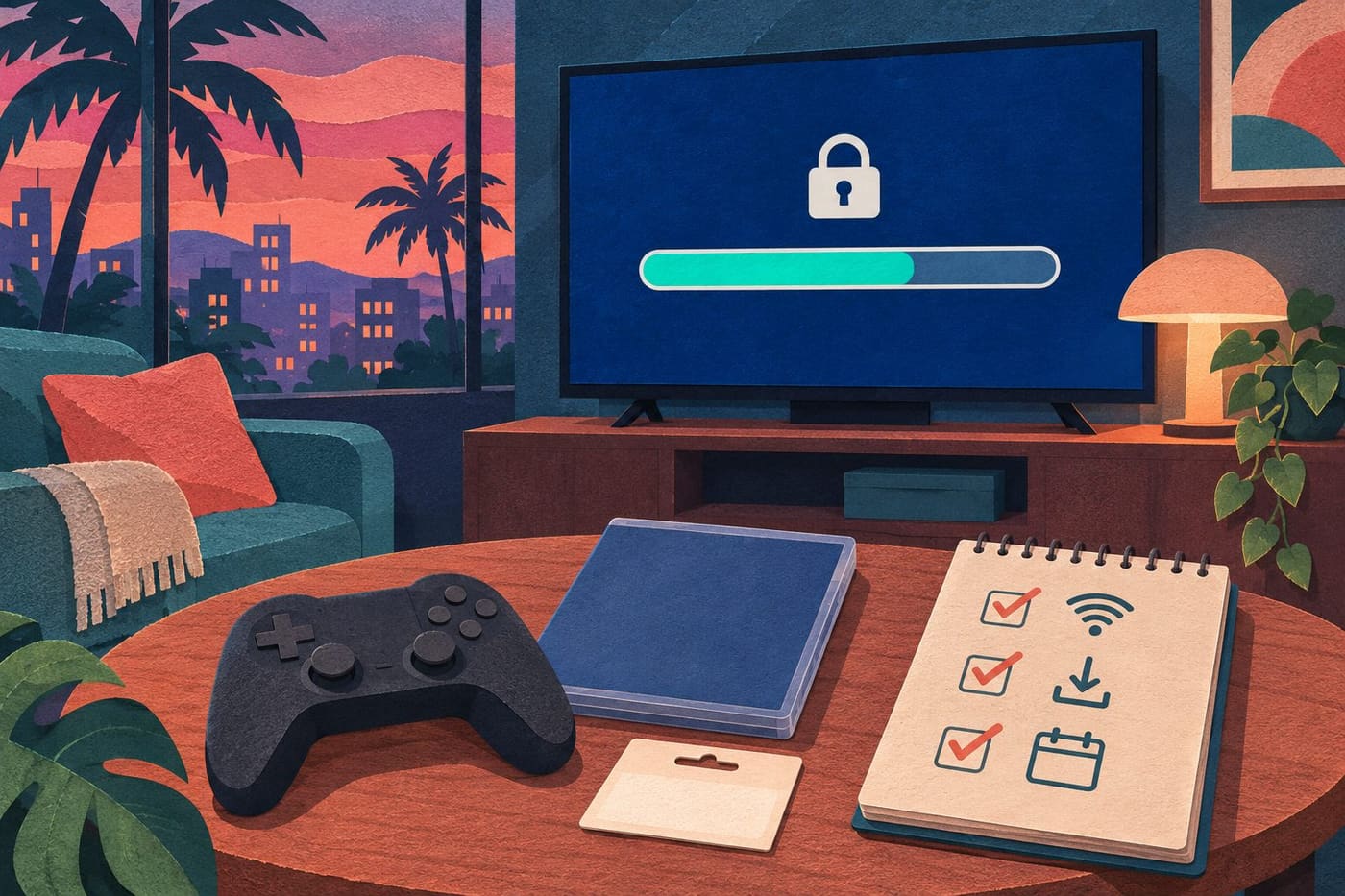
Grand Theft Auto VI is scheduled for November 19, 2026, on PlayStation 5 and Xbox Series X|S. That is the date displayed on Rockstar’s official game page, checked for this guide on November 18. If you are preparing to play in the United States, the useful next step is to establish the state of your own copy: ordered, redeemed, downloading, installed or available to launch.
Those states answer different questions. A receipt can confirm an order without showing that any files reached your console. A completed transfer can leave a game waiting for its release time. This guide explains how to read those distinctions and prepare a useful problem report if something fails. It is a launch-preparation guide, not a hands-on review; we have not played the finished game or tested its servers.
Start with the official date and your own countdown
Rockstar’s regional timing notice, last updated November 3, describes release at midnight local time on November 19 for both announced console platforms. It lists PS5 preloading from midnight local time on November 10 and Xbox Series X|S preloading from 00:00 GMT that day. The preload timetable and release timetable are therefore separate entries.
For a US reader, retain the time-zone wording when saving an announcement. The country covers several time zones, and a screenshot saying only “midnight” is incomplete evidence for a particular account. Consult the current countdown or availability message attached to your own console-store copy. This article does not independently establish a single US-wide unlock instant or a Pacific-time conversion.
A useful note would read: “Checked November 18; PS5; US store; countdown shown on my account.” Add the actual value you see, rather than filling the space with a time copied from another player. If an official notice and your storefront appear inconsistent, preserve both and check for an updated explanation before rearranging your evening around a guess.
Preloading gets files ready; release makes access possible
Imagine a parcel that has reached a building but is waiting for the office to open. That is only an analogy, but it helps separate preparation from access. Preloading lets a player acquire game data ahead of release; it is not evidence that the game has already become playable. A progress indicator describes the operation shown beside it, not every remaining requirement.
Read the words next to the indicator. “Downloading,” “installing,” “queued” and a release countdown would each call for a different response. A photograph of a nearly full bar is less useful than the accompanying status. Avoid repeatedly starting over simply because the final launch option has not appeared before the published release date.
Make a short state log if the process becomes confusing. Write the time, the displayed operation and any error message. Then change only one relevant thing before checking again. This preserves a sequence you can explain to support, instead of a collection of resets whose effects are impossible to distinguish.
Verify the copy before troubleshooting the console
First identify the platform and edition named in your purchase record. A game title alone does not establish which version the transaction covers. Keep the retailer confirmation or store order entry nearby, and compare it with the account and console where you expect to use it. Do this privately: a receipt may contain information that should never appear in a public help post.
PlayStation’s US support page says to check order history and the account used for purchase or redemption. It identifies the physical Standard version as a download code in a box, without a disc.
A shipment confirmation, a code and a library entitlement are different pieces of evidence. If a box has arrived, inspect what was supplied before assuming that a disc is missing. If a code has already been redeemed, preserve the confirmation and account context. Do not post the code for strangers to inspect; a public image can expose the very item you need to keep private.
Keep edition extras separate from the launch question
An edition name tells you which package you selected. It does not, by itself, prove an earlier start time, a different platform entitlement or a performance advantage. Use the current description of the specific package for those questions. An attractive bundle illustration is a poor substitute for the actual included-content list.
For someone who has already ordered, the immediate task is reconciliation rather than buying again. Write down the edition on the confirmation and compare it with the library entry. If the two appear different, seek an explanation through the appropriate store before paying for a second copy or an upgrade you may not need.
For someone still deciding, separate essentials from optional extras. The essentials might be the platform you own, the language support you require and the amount you are willing to spend. Additional items should earn their place in the decision individually. This guide does not provide a current price comparison or recommend a particular purchase tier.
Check download progress without inventing a file size
The reviewed sources do not establish a single download-size figure that this guide can promise for every reader. Use the requirement displayed for your current version and account. A number repeated in a social post may refer to a different package, update or stage of installation; it should not become the basis of an irreversible storage decision.
PlayStation’s support instructions point PS5 users to Settings > Storage for available space and Downloads/Uploads for transfer status. They also list connectivity and current system software among the checks when a download will not begin. Use the platform’s current instructions for any changes; the path for a PS5 should not be presented as an Xbox menu sequence.
Before removing anything to make space, identify it and decide whether you need to retain it. Installed game data, personal captures and saved progress deserve separate attention. A vague instruction to “clear everything” does not tell you what will be lost. Prefer a deliberate storage choice to hurried deletion driven by an uncertain countdown.
Estimate waiting time from your own observation
A connection’s advertised speed is not a guarantee for a particular download. For a practical estimate, observe the change in the displayed amount over a measured period while the transfer is actually moving. Keep the units consistent and describe the answer as an estimate based on that observation.
Here is a fictional arithmetic example, not a GTA VI file-size claim. Suppose a screen shows 60 GB remaining, and the remaining amount falls by 6 GB over twelve minutes. At the same observed pace, 60 divided by 6 gives ten intervals, and ten times twelve gives approximately 120 minutes. This describes transfer time under that assumption; it does not establish when installation, an update or release access will finish.
Repeat the observation if the pace changes. There is little value in treating a single short burst as a reliable forecast for the whole evening. If the estimate conflicts with the time you have available, plan a later first session instead of promising friends an exact start that your evidence cannot support.
Distinguish a lock from a failed transfer
Consider two fictional players on November 18. Morgan sees a completed download and a release countdown. Sam sees a download error and no movement in the transferred amount. Their screens describe different problems even though both players say, “I cannot play yet.” Morgan first checks the release information; Sam records the transfer error and follows the relevant platform’s troubleshooting path.
This distinction makes a help request much clearer. Begin with what the console actually displays. Then add the platform, account-store region and the last action that completed successfully. If you know only that the launch button is unavailable, say so; do not convert uncertainty into a claim that the game’s servers have failed.
A single player’s error also cannot establish a widespread outage. If a service issue is suspected, consult the platform’s official status information and retain the time of the check. An old screenshot can describe a resolved problem. Likewise, a clear status page does not prove that an individual account, code or connection is functioning correctly.
Use the right support route
PlayStation directs account and download questions to its support, and gameplay, patch and bug questions to Rockstar. The retailer handles a missing or unreadable code. Describe the issue before choosing the route.
Prepare a compact record containing the title and edition, platform, error text, when it occurred, and the steps already tried. Keep order identifiers and other sensitive details for the official private support channel. In a public discussion, redact information that could expose your account or allow someone else to use a code.
Write one clear question at the end of the record. For example: “The order appears in my history, but this account’s library does not show the game; which check should I perform next?” That gives support a specific starting point. Repeating “it does not work” with a long list of unrelated experiments usually leaves the most important facts unstated.
Check language and access needs before the first session
If language support matters to you, distinguish spoken dialogue from written text. A language appearing in a store table may describe subtitles or interface text rather than a full voice track. Check the relevant column on the official page for the version you intend to use. Keep any essential unanswered requirement visible rather than assuming that the presence of a language name settles it.
The November 10 PlayStation Blog preload announcement describes controller feedback and accessibility-related adjustments. Those are publisher descriptions, not results of our own settings tests. If a particular adjustment is essential, look for the current explanation or a clear demonstration of that setting before making plans that depend on it.
At the first available session, leave time to inspect the menus you actually need. Think about text readability at your seating distance, audio balance and comfortable controls. These are evaluation questions, not claims that every desired option exists. The aim is to discover whether the available settings meet your circumstances without mistaking promotional language for a personal guarantee.
Be precise about platforms and performance claims
The official launch page reviewed for this article names PS5 and Xbox Series X|S. It does not provide a PC release date in the material reviewed here. That supports a narrow statement about the current announcement, not a prediction that another platform will never receive the game. Keep unannounced dates out of a preparation checklist.
The same discipline applies to frame rates, visual quality and loading times. A trailer, a marketing phrase and a measured performance test are different forms of evidence. We have not benchmarked GTA VI on any console. This guide therefore cannot promise a frame rate or declare one machine the best purchase for a reader’s circumstances.
Our earlier Phantom Blade Zero prelaunch guide illustrates how to keep platform-specific claims tied to their source. Its dates and specifications concern that separate game and its research date; none should be transferred to GTA VI.
A final launch-evening check
Before arranging a session, bring together five observations: the correct copy is attached to the expected account, the displayed transfer state is understood, available storage has been checked, the release message has been read with its time-zone context, and any unresolved error has a clear record. These observations are more useful than a general declaration that everything is ready.
Leave space for a different outcome. You might decide to wait for independent reviews, postpone a download or play on another evening. Preparation should make the decision easier, not turn an announced release into an obligation to buy or stay awake. If your essential question remains unanswered, record it and revisit the decision when evidence improves.
Conclusion and research note
November 19, 2026, is the official GTA VI launch date checked for this guide. For US players, the practical work is to connect that announcement to the correct platform, account, copy and displayed status. Preloading is preparation; the screen’s actual message tells you which step remains.
Sources consulted 18 November 2026: Rockstar’s official game and regional timing pages, PlayStation’s US support page and the November 10 PlayStation Blog announcement. This is sourced preparation advice with original fictional examples, not a gameplay review, server test or guarantee of an individual unlock time. No purchase, redemption or download was performed for this article. The original AI-generated illustration is a conceptual living-room scene, not an official game image or screenshot.