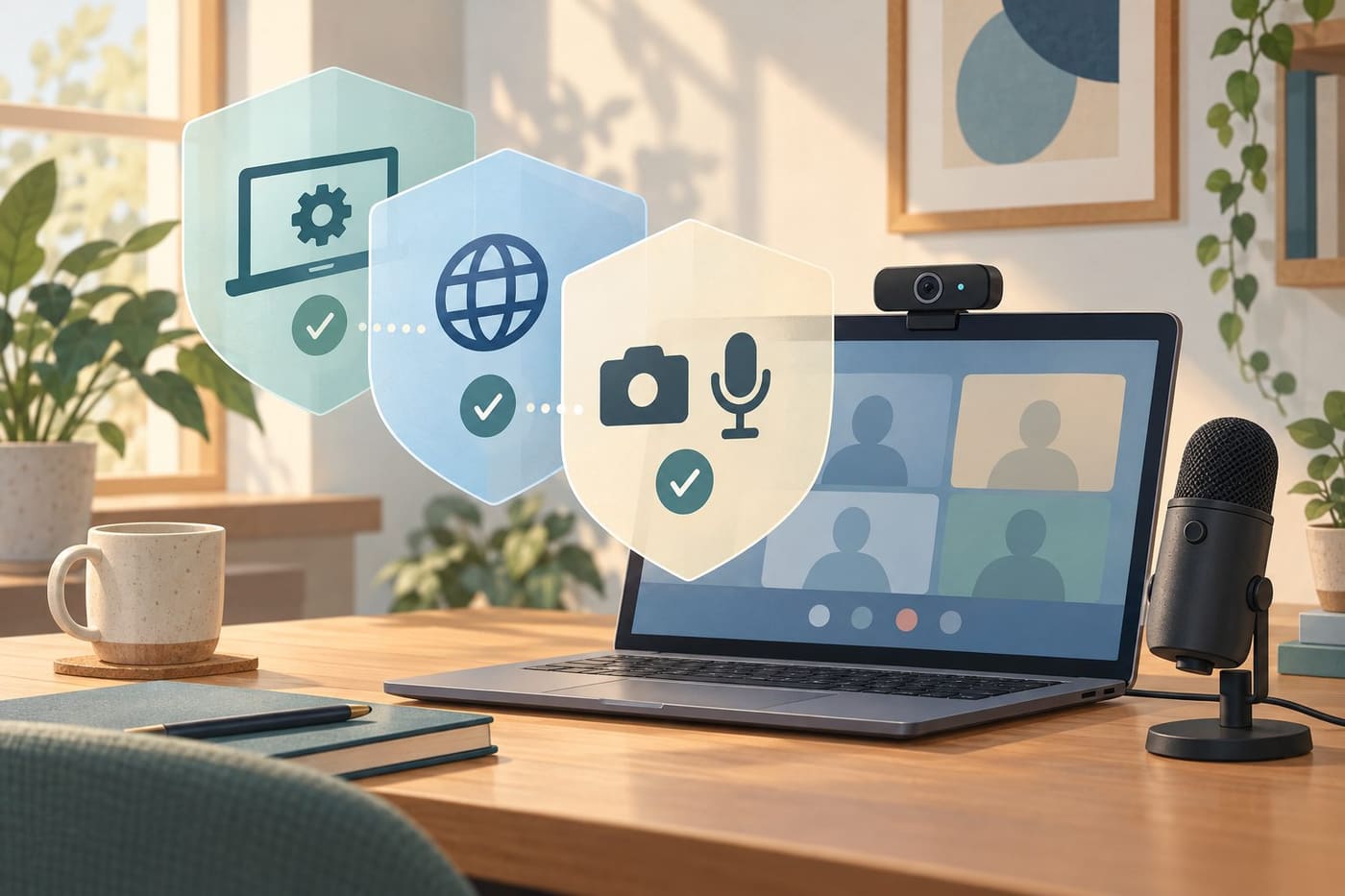
The meeting page opens, your name appears, and the microphone still does nothing. It is tempting to keep pressing Allow or to change every privacy switch you can find. A better approach is to separate the questions. Does the computer make the device available to the browser? Does the browser allow this particular website to request it? Has the meeting application selected the device you intend to use? Those questions belong to different layers.
This guide explains a controlled troubleshooting sequence for ordinary browser video calls. It draws on current vendor documentation checked on 31 October 2026, with desktop examples and explicit limits where devices, versions or administrator policies differ. It does not claim that every failed call is a permissions problem. Network conditions, service faults and hardware problems can require a different investigation. The aim is to find the next useful check without turning off unrelated protections.
Name the failure before changing a setting
Start with what you can actually observe. Is the camera preview blank? Does the meeting show the wrong camera? Does an input meter move while other participants report silence? Is the browser showing a permissions prompt, or has the site displayed its own error message? Write down the exact wording privately. A description such as microphone does not work hides several different situations and makes repeated troubleshooting less useful.
For an invented example, imagine Lena preparing for an online lesson. Her camera preview is visible, but her microphone input meter stays still. She has a laptop microphone and a connected headset. The useful starting point is the audio input path, not a general attempt to repair the entire browser. Lena is a fictional user introduced to illustrate a method; no real participant, lesson or device test is being reported.
Keep the observation separate from the explanation. A silent meter is an observation. The browser has blocked my headset is a theory until a check supports it. This distinction prevents the troubleshooting note from becoming a story about a cause that nobody established. It also helps someone assisting you decide whether to ask about permissions, device selection, physical mute or something further along the call path.
Confirm the site and the requested feature
Before granting access, confirm that you reached the service through the intended address and that the requested feature fits the action you are taking. A video-call page may need a microphone; reading an unrelated page generally does not require you to grant the same access. Do not treat the presence of a prompt as evidence that the request is appropriate. Permission is a choice about access, not a certificate of trustworthiness.
Google's Chrome documentation distinguishes choices for one visit, visits to the site and refusal, where those choices are offered. It also explains how to manage individual site permissions separately from defaults. The exact labels available can vary with the platform and version. Use [Chrome's site-permission guidance](https://support.google.com/chrome/answer/114662?hl=en) to match the controls on your device rather than assuming every screen has the same buttons.
For Lena's fictional lesson, a sensible decision would be to grant only the feature she plans to use on the verified lesson site. She would not enable location, notifications and every other feature merely because they appear nearby. If the service offers an appropriate audio-only route, that may be enough for the task. Whether an alternative is accepted depends on the meeting organizer and the actual service, not on this article.
Check the browser permission for this site
A remembered refusal can be relevant even when no new prompt appears. In desktop Chrome, the documented route is Settings, then Privacy and security, then Site settings; Camera and Microphone have their own controls. Google's separate [camera and microphone guide](https://support.google.com/chrome/answer/2693767?hl=en) explains reviewing allowed or blocked sites and selecting a default input device. Check the relevant entry instead of changing the global behaviour for every website.
If you change one setting, return to the intended page and follow its normal retry or reload instructions. Record what changed and what happened. Do not assume that a permission label reading Allow means the full call is now functional. It establishes one piece of access configuration. The application still has to request and use the intended device, and other layers may still prevent that request from producing useful audio or video.
Firefox uses its own controls. Mozilla explains clearing camera or microphone permissions through the address bar and managing them through browser settings or page information. Its [camera and microphone permissions guide](https://support.mozilla.org/en-US/kb/how-manage-your-camera-and-microphone-permissions) is the relevant reference for that browser. Do not copy a Chrome-specific menu path into a Firefox support note and then interpret the missing menu as a fault in the user's installation.
Check the operating-system layer separately
A browser's site permission is not the only access decision. Microsoft explains that Windows has camera and microphone privacy controls and that websites in Edge also need individual permission. Its [Windows camera, microphone and privacy guide](https://support.microsoft.com/en-us/windows/privacy/windows-camera-microphone-and-privacy) distinguishes application access from site access. The controls shown depend on the app type and Windows configuration; use the current guidance for the installed version rather than a remembered screenshot.
This produces a useful two-question check. First, is the browser permitted to use the relevant device through the operating system? Second, is the intended site permitted to request it through the browser? A yes at one layer does not answer the other. If a managed setting is unavailable, note that fact and use the organization's support route. Do not attempt to remove management, alter policy or borrow an administrator's credentials to get around it.
Treat operating-system changes as deliberate decisions. Read the label, understand its scope, and avoid enabling unrelated applications just to see whether something improves. If a control affects a broader group of desktop applications rather than a single site, that distinction belongs in your decision. The goal is appropriate access for the task, followed by verification, not the largest possible number of switches in the on position.
Look at the device selected inside the call
Even after the access questions are settled, the meeting may be listening to an unintended input. A laptop, USB headset, display and webcam can expose several differently named devices. Open the meeting application's ordinary device selector and identify the one you mean to use. Microsoft provides a browser-specific troubleshooting overview for [device features in Teams on the web](https://support.microsoft.com/en-gb/teams/troubleshooting/troubleshoot-device-features-in-microsoft-teams-on-the-web); other meeting services have their own supported controls.
In Lena's invented example, she would compare the selected microphone's name with the connected headset rather than guess from the order of the list. She would speak normally and watch any provided input meter. If it responds, she has evidence that the application is receiving some input. That is useful progress, but it does not prove that another participant can hear her, that the correct person is speaking, or that a recording has been saved correctly.
Check physical controls too: a headset may have its own mute button, and a camera may have a cover. Avoid diagnosing those as browser defects before looking. These are proposed everyday checks, not findings from a particular hardware model. If a device needs specialist drivers, a repair or replacement, use the manufacturer's supported instructions. Downloading a random utility advertised as a universal webcam fix adds a new problem instead of isolating the existing one.
Separate permission from device availability
Microsoft's Edge troubleshooting documentation describes multiple relevant layers, including operating-system privacy, site permissions, hardware availability and enterprise policy. It also notes that other applications can hold a media device. See [camera or microphone issues in Microsoft Edge](https://learn.microsoft.com/en-us/troubleshoot/microsoft-edge/development/edge-camera-microphone-not-working). The article's diagnostic discussion helps explain why a visible permission setting alone may not resolve the fault; it is not a guarantee that a particular error has one universal cause.
For a controlled check, close an ordinary test application that you intentionally opened and no longer need, then retry the meeting through its normal interface. Do not terminate unfamiliar system processes or another person's ongoing work. On a shared computer, coordinate with the person responsible for the device. A troubleshooting step that interrupts an active recording or examination can have consequences far beyond the original microphone problem.
If the change helps, describe the observation narrowly: the device became available after that application was closed. Do not immediately claim the application is defective or that the issue has been permanently repaired. The situation may require additional vendor guidance if it recurs. Keeping the claim proportional to the test is especially important when someone later turns a one-off support note into instructions for an entire team.
Test input, output and delivery as different things
Microphone input and speaker output answer different questions. An input meter moving does not prove that the correct speaker is selected. Hearing a test sound does not prove that your microphone is sending useful audio. Use the meeting service's supported preview or test controls where available, and keep the checks separate. If a second person assists, agree on a short, ordinary check rather than repeatedly joining a live event and disrupting it.
For an original troubleshooting note, create four lines: intended microphone, selected microphone, observed input response, and the next result to verify. Add the camera separately if video is needed. This is an optional personal note, not a vendor diagnostic form. It prevents an apparently small improvement from becoming an unsupported all-clear. Delete or protect any private meeting information rather than circulating it with the note.
Once local input appears to work, a continuing delivery problem may need investigation beyond permission settings. Follow the service's current help guidance or contact its support team with the observations you have collected. Repeatedly toggling camera access is unlikely to produce useful evidence about a problem that only affects speaker selection or another part of the session. Change one relevant thing at a time so that the result remains interpretable.
Know when to stop changing settings
A work or school browser may be managed. Google explicitly notes that administrators can control camera and microphone settings in those environments. A disabled control or policy message is a reason to ask the responsible support team, not an invitation to bypass the restriction. Explain the legitimate task and provide the relevant error text. The administrator can assess the approved route without needing you to weaken the device's configuration first.
Likewise, do not treat private browsing, a different account or another browser as a way around a rule. An organization may have a supported alternative, but that needs to come from its own policy or support process. For an unmanaged personal device, changing browsers can still complicate the investigation by changing several variables at once. Prefer a documented sequence that lets you say what was tested and what the test actually established.
Set a practical stopping point before a time-sensitive appointment. If the normal checks do not resolve the problem, use the organizer's approved fallback or support route. Avoid spending the final minutes granting unfamiliar websites access or installing unverified tools. A clear message saying that the application cannot currently detect the intended microphone is more useful than a confident but unsupported claim that the internet, the laptop or the meeting provider is broken.
Conclusion: finish with a verified path
An effective check follows a path from the intended device through operating-system access, browser site permission and application selection to an observed result. It leaves unrelated settings alone and distinguishes a local preview from a successful conversation. When the cause remains uncertain, the note should preserve that uncertainty rather than manufacture a diagnosis. This makes the next support conversation shorter and the privacy decision more deliberate.
Site permissions also differ from the access granted to installed browser extensions. For that separate review, see our [browser extension permissions guide](https://monetizearticle.com/article/browser-extension-permissions-review-the-access-you-allow-86d9e3). Review the appropriate control for the problem you actually have. A microphone permission can enable a feature; it cannot by itself establish that a site is trustworthy, a device is healthy, or a call will be delivered successfully.
Sources and research note
Vendor documentation linked above was checked on 31 October 2026. Menu paths are desktop examples and can differ by operating system, version and managed policy. Microsoft's Edge troubleshooting page is dated 11 September 2026; no experimental or future Windows control is assumed to be generally available. The sources describe supported access and troubleshooting concepts; no hands-on test of every browser, device or meeting service is claimed. Lena, her lesson and the diagnostic note are original hypothetical examples. The accompanying image is an original AI-generated conceptual illustration, not a software screenshot, measured diagnostic result or photograph of a real meeting.