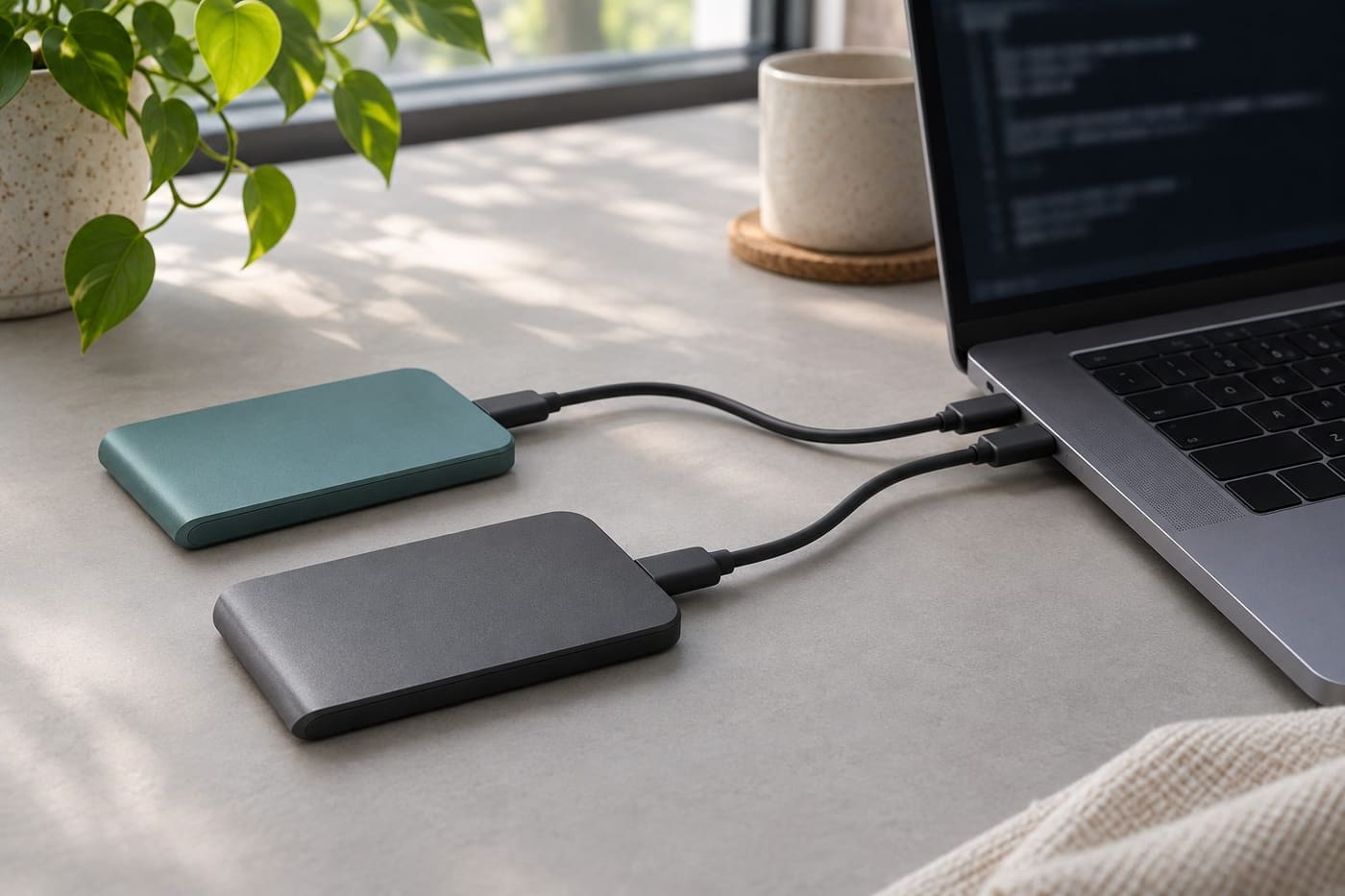
You copy a folder of family videos to an external drive. The progress window closes, the destination lists the expected filenames, and the largest video plays for the first minute. Those are useful observations, but each answers a different question from the one you need to settle before putting the source drive away: did the destination receive the same bytes? On a Windows computer, PowerShell can calculate a SHA-256 digest for each copy so you can make that comparison directly.
Start with one file you can identify by its full path. This guide uses a video, but the same approach works for a spreadsheet, a scanned document, or a completed archive. After the single-file example, you can use the same reasoning to plan a small folder transfer and record exactly what you verified.
Decide which version should match
A digest is a fixed-length value calculated from data. NIST's Secure Hash Standard describes how SHA-256 produces a digest that can help detect a change in that data. If two files give different SHA-256 values, the bytes presented to the hash function were different. Matching values are very strong practical evidence that the bytes match in an ordinary copy check. Compare the complete digest. The first few characters are useful for finding a row in a log, but they are only a fraction of the comparison.
The important editorial decision happens before you open PowerShell: which file is your reference? Suppose a friend sends you a finished video and you later export a smaller copy from an editor. Both might carry the same name in different folders. Pick the finished delivery if you are trying to preserve that delivery. Pick the smaller export if your project specifically calls for that version. Even if two files play the same scenes, exporting or editing can produce different bytes, so define the intended version before treating a difference as a transfer fault.
Close the program that might still be writing the source. In a shared folder, ask the person preparing it to finish their edits before the copy begins, or use an agreed frozen export. Wait for the copy to finish, and use the local paths that actually represent the two files. If a sync client shows an online-only placeholder, make sure the files you intend to compare are available locally and that their transfer has finished. A hash calculated while a file is still changing is a poor reference for a later transfer.
Compare the two copies in PowerShell
Open PowerShell and replace these sample paths with the full paths on your computer. Check drive letters again if you have unplugged and reconnected a drive. The following commands read the files and compare their digests.
- $source = 'C:\Media Originals\Interview 01.mp4'
- $destination = 'E:\Archive Copy\Interview 01.mp4'
- $sourceHash = Get-FileHash -LiteralPath $source -Algorithm SHA256 -ErrorAction Stop
- $destinationHash = Get-FileHash -LiteralPath $destination -Algorithm SHA256 -ErrorAction Stop
- $sourceHash | Format-List Algorithm, Hash, Path
- $destinationHash | Format-List Algorithm, Hash, Path
- $sourceHash.Hash -eq $destinationHash.Hash
Keep the quotation marks around paths containing spaces. With -LiteralPath, PowerShell uses the path as written, which is handy for filenames containing brackets. The example names SHA256 explicitly so the algorithm is apparent in a saved command or a handoff note. Microsoft documents SHA256 as the default for Get-FileHash as well. The final expression compares the hash values themselves rather than the displayed paths, which should be different when you are checking two locations.
Run the whole example in one go. If either file produces an error, address that error and rerun from the top before interpreting any previous output. Check that the two displayed paths really point to the source and destination you meant to compare. Then read the final result. A True with two successful reads is the match you were looking for. A False calls for investigation. A command that couldn't read one of the files hasn't made the comparison.
With a large file, the command may take time because it has to read the data. If you are working through a drive of video, try the smallest representative file first so you can see what a successful comparison looks like. Leave the paths in the displayed output. If you accidentally hash the destination twice, the answer can be True even though the source was never checked. Seeing the two paths alongside the digests makes that mistake easier to catch.
Separate a mismatch from a failed read
A mismatch is an observation about two readings. It doesn't tell you which file is correct or why they differ. First confirm that the names, folders, and intended versions line up. A source named Interview 01 in a folder of raw footage and a source with the same name in a folder of edited exports can both be valid files. Comparing their sizes is a quick clue, but two versions can have the same size and still differ.
If both paths are correct, confirm that the source wasn't edited or replaced after the copy started. In a shared project, a same-named file may be overwritten with a new revision. Look at the revision history where available, or ask the person who supplied the source to identify the intended export. If you discover that the original copy used the wrong version, record the correction so the next person doesn't repeat the comparison against the old reference.
For a stable source and a suspect destination, try copying the source to a separate destination filename or a new folder, then compare the new copy to the intended source. Keeping the suspect copy temporarily lets you investigate a repeat problem without overwriting the evidence. If the second copy matches, record which destination passed. If differences keep recurring, preserve the known source and the comparison records before deciding how to investigate the drive, connection, or software involved. A mismatch by itself cannot diagnose the equipment.
A failed read needs a separate status. If PowerShell reports that it can't find a path, check the actual drive letter, folder, and spelling. If it reports that access was denied, check that you're using a location your account can legitimately read. If the destination is temporarily unavailable, reconnect it through your usual workflow and rerun the entire comparison. Keep the status pending until you can read both files successfully. That distinction matters when a list of checks is handed to someone who wasn't there for the copy.
Keep a record you can use without the original drive
For a one-time comparison, the two displayed rows and the result may be enough. For a transfer you plan to revisit, keep a short manifest with the algorithm, the full digest, the relative path, and the date the reference was captured. Include the reference version or batch name and a brief note about which destination was checked. A relative path such as Interviews/2025/Interview 01.mp4 makes the record useful even if a different computer assigns the backup drive a new letter.
Keep a trusted copy of the manifest somewhere you can still read if the destination fails. At a later check, use the full recorded digest and identify the file by its recorded path and version before calculating its current digest. The record then answers whether that file still matches the reference. If you edit the file on purpose, record it as a new version with a new digest. Keep the earlier record where you need to verify an earlier copy.
The Library of Congress's data integrity guidance explains why preservation programs capture and retain fixity information for individual files and collections. A household or small office can borrow that recordkeeping idea on a smaller scale. Imagine handing over a folder of 35 scans. If your note only says that the scans copied successfully, your colleague cannot tell which files you checked. A manifest tied to the relative paths makes the checked scope visible and gives the next person a usable starting point for another comparison.
If the folder contains private material, keep the manifest with appropriate access controls. The hashes are values derived from the files, but filenames and paths in the same record may reveal client names, project labels, or personal information. The record can use an agreed batch label and relative paths while still showing where each digest belongs.
Verify a folder by checking inventory and contents
A folder comparison requires an inventory as well as hashes. Start with the relative paths expected from the source. Compare them with the destination list so you can identify missing and unexpected files. Then compare digests for the paths that appear in both locations. If empty folders matter to the handoff, record those separately because they don't appear in a list of file hashes. If you're checking a single compressed archive as delivered, its hash covers the archive file's bytes. Check extracted contents separately if the deliverable is the extracted folder.
For example, suppose the source contains Day 1/Audio.wav and Day 2/Audio.wav, while the destination only contains Day 1/Audio.wav and an older file named Audio.wav in its top folder. A check based on the final filename alone could pair a recording with the wrong copy. Using relative paths makes the missing Day 2 recording visible. The additional file at the top level should be recorded separately so you can find out why it is there.
When recording results, separate matching files, differing files, missing files, unexpected files, and failed reads. These statuses point to different next actions. For a large folder, save the results by batch and note the scope of any sample. You can say that you checked every file in the delivery folder only if you compared the complete inventory and successfully read all the relevant pairs. A small sample can help you test the process before committing to a larger check. It gives you evidence about the files in the sample.
Check the questions a digest leaves open
A SHA-256 comparison is about the bytes. If two copies match, the copy carries the same content the reference carried, including any existing damage in that reference. Open a representative file with the software that will actually be used. For a video, seek to several places, including the end. For an important archive, try extracting it to a separate test location and check that the files you need can be found and used. These checks address readability and recovery alongside the byte comparison.
File hashes also leave filesystem details such as permissions and folder ownership outside this check. If a group needs access after a handoff, verify that access through its normal account and workflow. For an encrypted backup, make sure an authorized person can recover it using the intended recovery method. A file can match perfectly while still being inaccessible to the person expected to use it.
For a downloaded file, the quality of the reference matters. If you have only computed the digest of a download, you have a reference for detecting a later change to that local file. Comparing with a publisher's digest obtained through a trusted source can answer whether it matches the publisher's stated bytes. If a file and its accompanying checksum both came from an untrusted message, matching values only establish consistency between the two items you received. The person or service that supplied the reference still matters.
Finish the transfer with a clear handoff note
A useful handoff is short enough to read and detailed enough to repeat. Record the intended source version, destination, verification date, algorithm, inventory scope, exceptions, and any separate restore or playback test. For instance, an illustrative note could say that all 35 expected scans in the November delivery were present and SHA-256 matched, one extra thumbnail was recorded separately, and three PDFs were opened from the destination. Someone reading that note can distinguish a complete byte check from a sample of readability checks and see where to look for the extra file.
If you are organizing photographs as part of the same project, the guide to starting a family photo archive covers the context and stories that go with the files. Once you have a named batch and a stable source, the digest check gives you a repeatable way to confirm the destination before you rely on it. Start with one pair, check both displayed paths and the full match result, and save the evidence where the next check can find it.
Sources consulted 7 November 2026
- NIST Secure Hash Standard
- Microsoft PowerShell Get-FileHash reference
- Library of Congress Data Integrity Management